Connecting to MONTAGE via MONTERA
MONTERA is our modern, web-based portal for interacting with the MONTAGE HPC clusters. It provides a seamless interface for managing Slurm jobs and launching interactive computing environments directly from your browser, eliminating the need for complex SSH tunnels or local client configuration.
Logging in to MONTERA
As usual, to connect to MONTERA, you will have to be connected to the Monash Malaysia VPN network.
- Open this link in your browser,
http://10.168.151.1:3000; bookmark this link if you want.

- You will be greeted by a secure login page. Key in your HPC credentials.
- You are in!
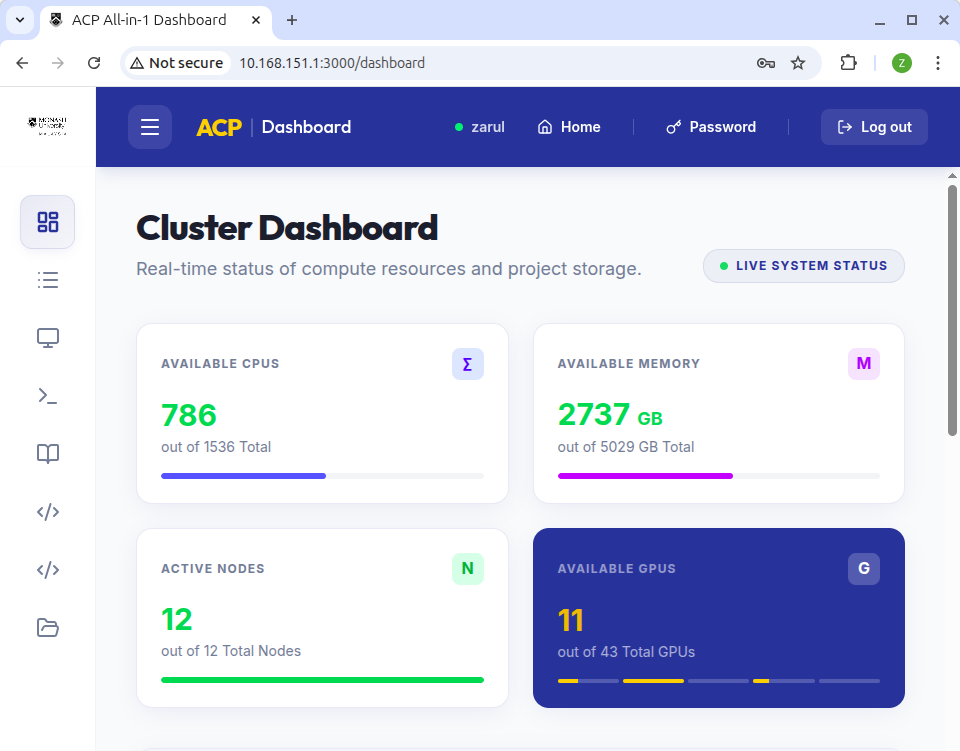
The Dashboard Overview
Once logged in, the HPC Dashboard provides a real-time snapshot of the cluster's health and your personal resource usage:
- Change your password: Easily change your password here.
- Cluster Occupancy: View available and in-use CPUs, Nodes, and GPUs (including specific models like NVIDIA A100 or H100).
- Storage Quota: Monitor your home directory and project space usage to avoid "disk full" errors during heavy computation.
- Active Services: A quick-access list of any interactive sessions you currently have running.
Running Interactive Apps
MONTERA’s primary feature is the One-Click Launch for interactive applications. These run as standard Slurm jobs on compute nodes but are proxied directly to your browser.
Remote Desktop
If you need a full GUI environment (for tools like MATLAB or visual data exploration), select Desktop. MONTERA will initialize a VNC session and provide a "Connect" button once the job is allocated.
-
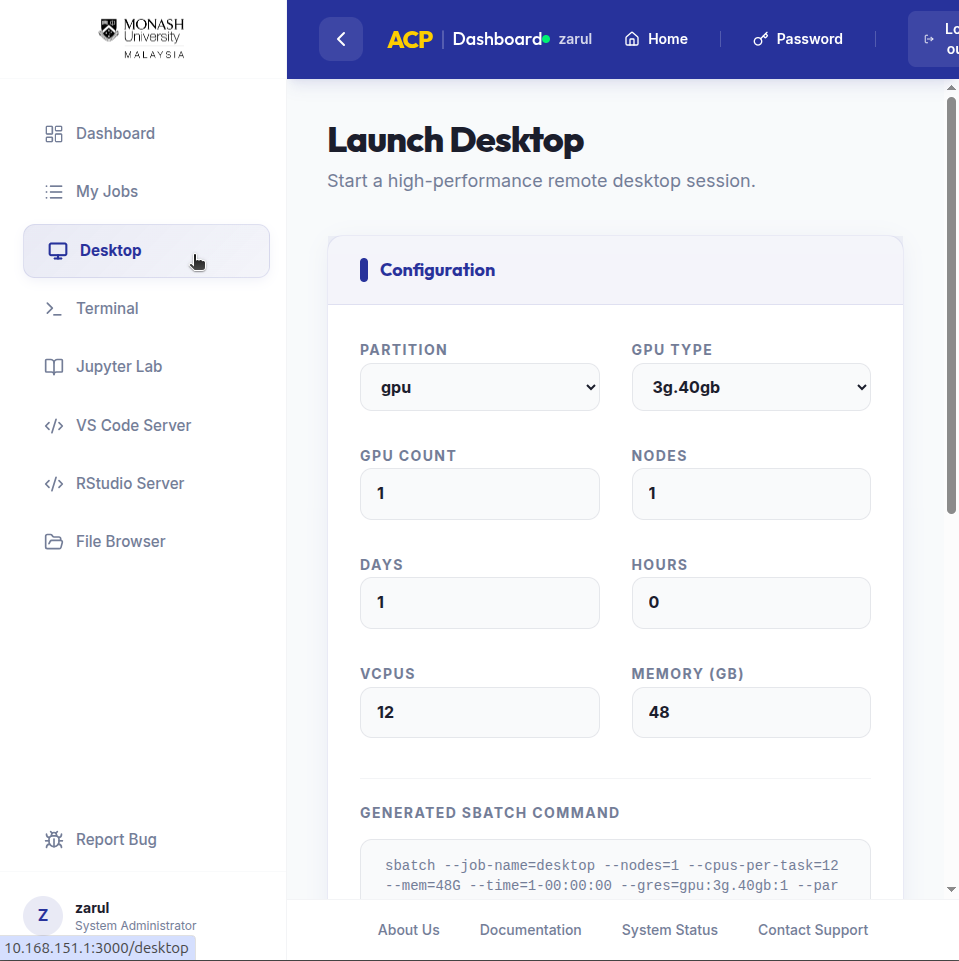
Click on "Desktop" on the left panel.
-
Pick your configuration. In this example, I need a GPU resource for three days, 12 CPU cores and 48 Gb RAM.
-
Click "Launch Desktop".
-
Immediately the request will be queued and its status will be PENDING until resources are available
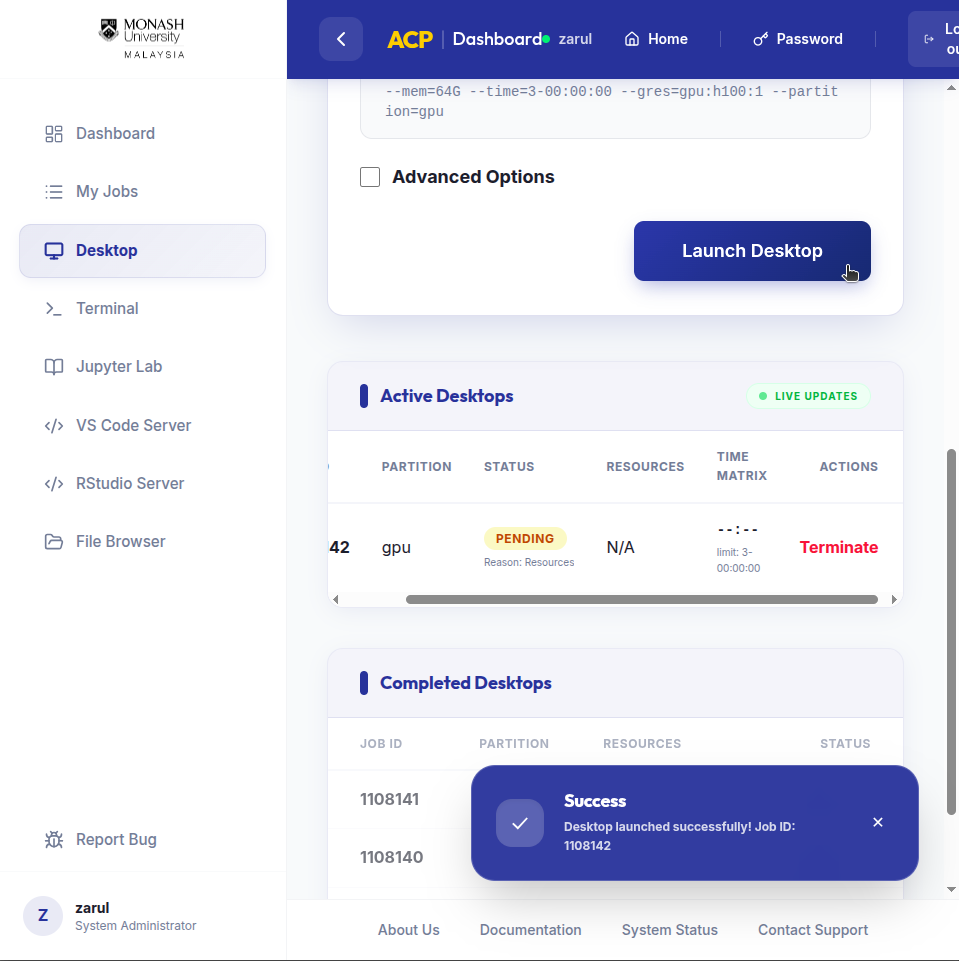
Try use only the adequate amount of resource. The lesser the resource you request, the higher the priority of the job.
-
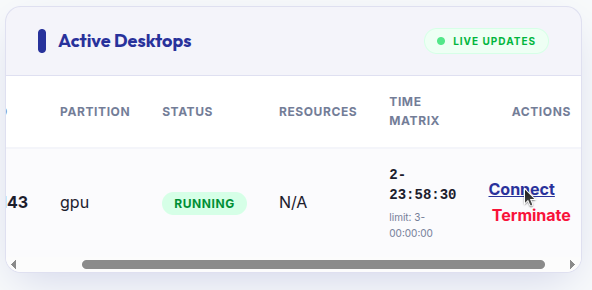
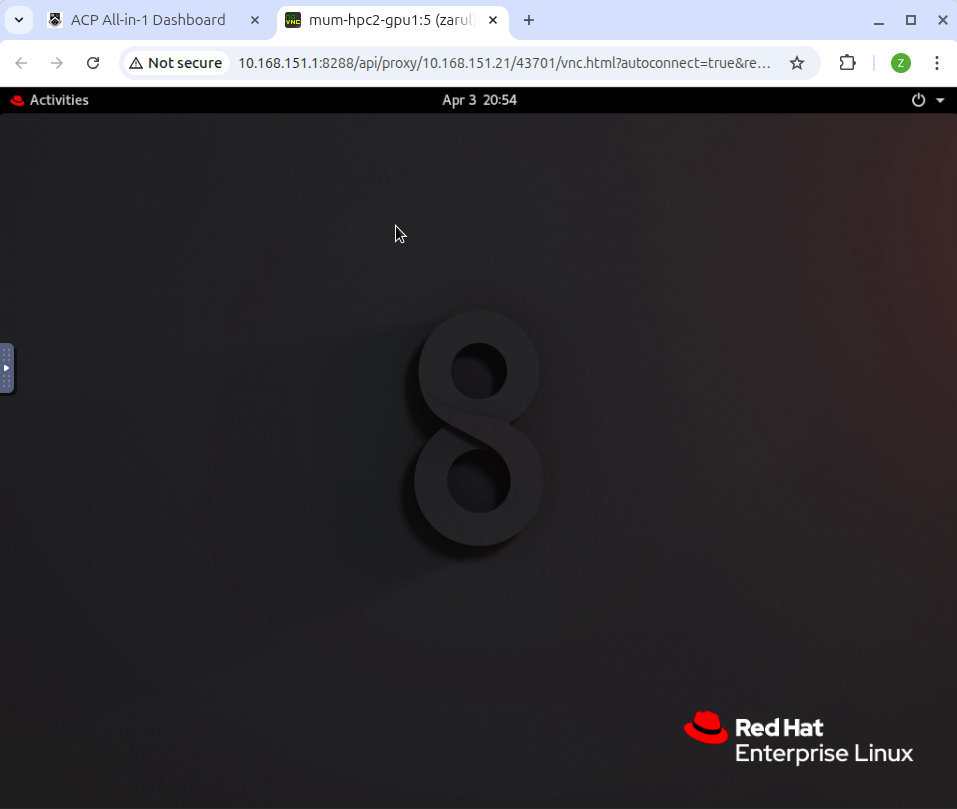
When the desktop session is ready, the status will change to RUNNING; click Connect, which will open a new tab.
-
Your desktop session is ready!
-
Once you are done, remember to terminate the desktop session.
JupyterLab
For development, you can launch:
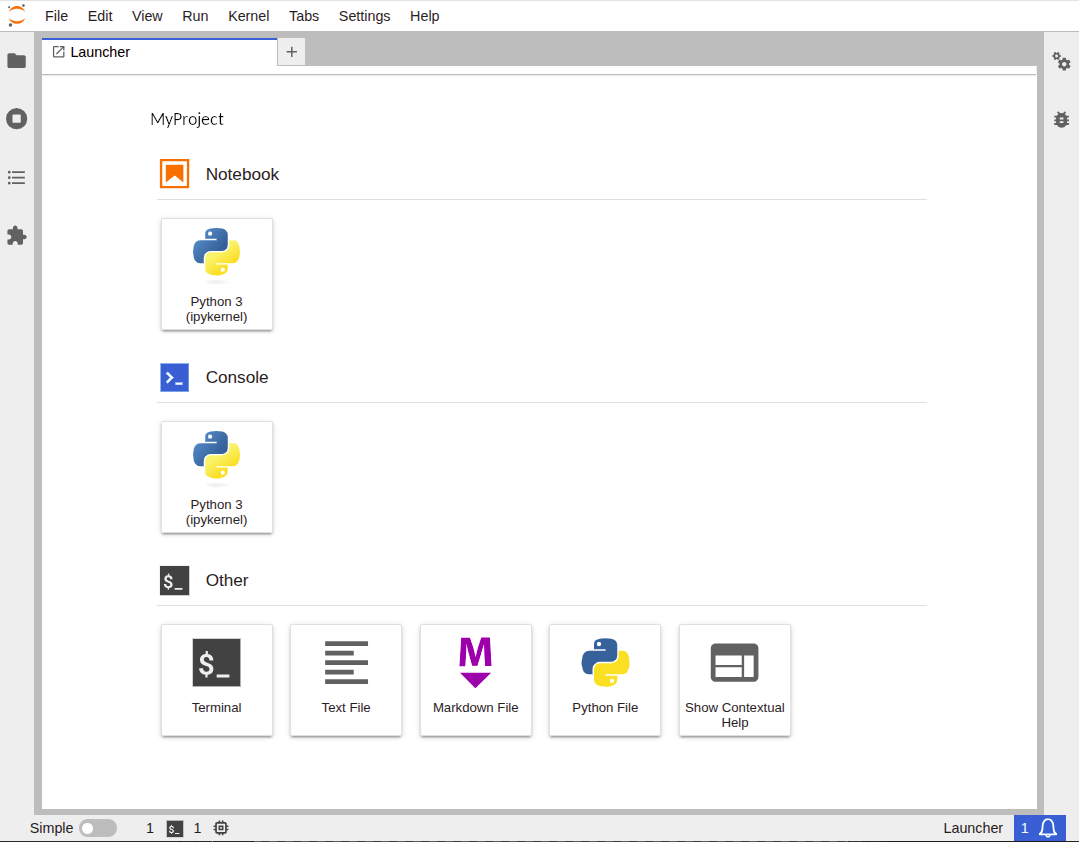
- JupyterLab: Choose your favorite Conda environment or Python version from the dropdown.
- VS Code (Web): Provides a full IDE experience running directly on a compute node with access to high-performance local storage.
VS Code
-
Just like the desktop session, just pick the configuration you required for your session.
-
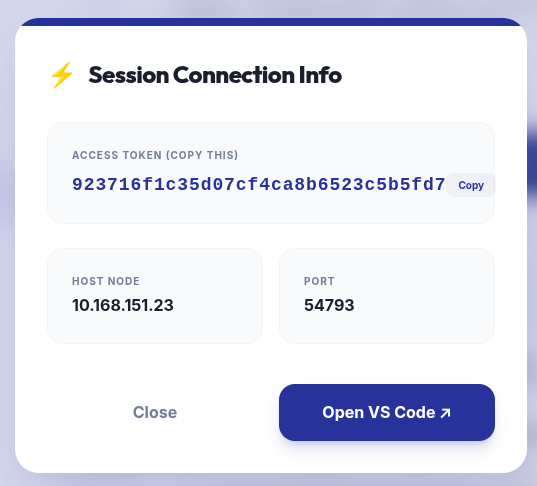
For VS Code and RStudio Server, you will need to copy an access token, which is required for further verification to access the VS Code or RStudio Server session.
-
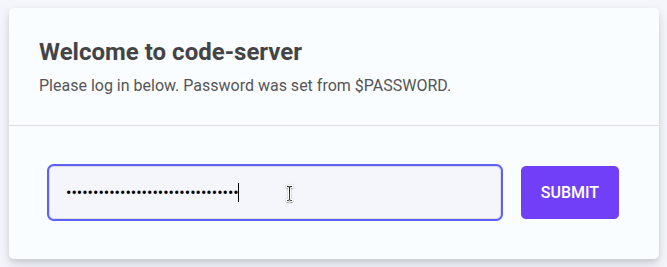
Copy the Access Token. Click on "Open VS Code", which will open a new tab. Paste in the Access Token.
-
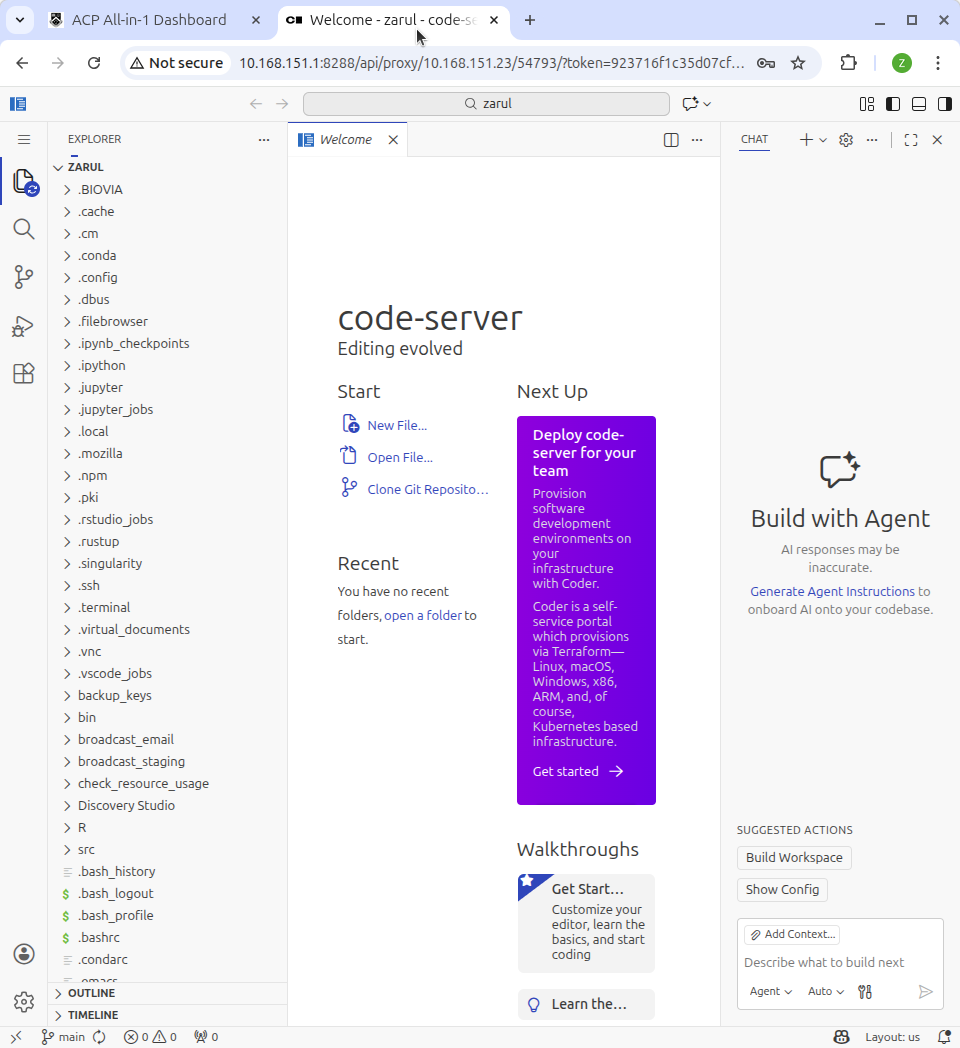
You are now in! Happy coding!
RStudio Server
Data scientists can launch RStudio Server instances pre-configured with specific modules or environments, ideal for heavy statistical processing.
-
Select RStudio Server on the left panel.
-
Select your desired configuration. Click "Launch RStudio".
-
Once the session is ready, click on Connect.
-
Copy the Access Token.
-
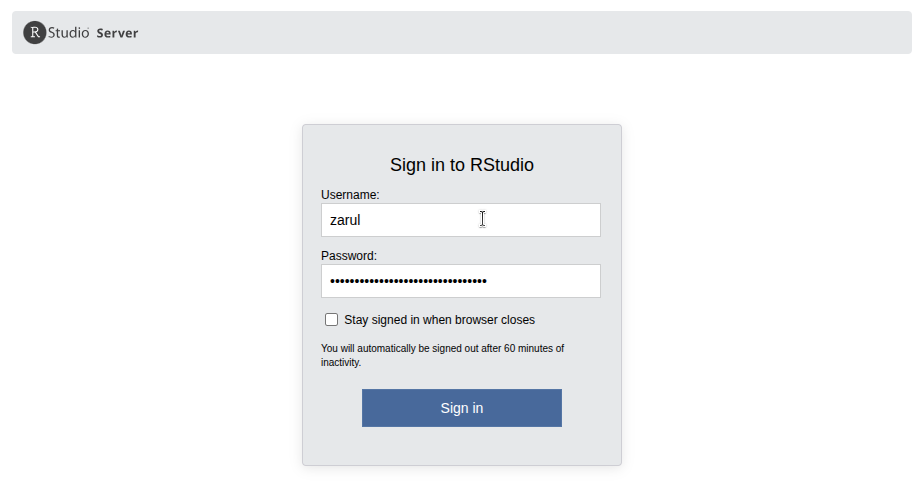
Fill in your user name and the Access Token just now.
-
You are in!
status <- "Happy coding!"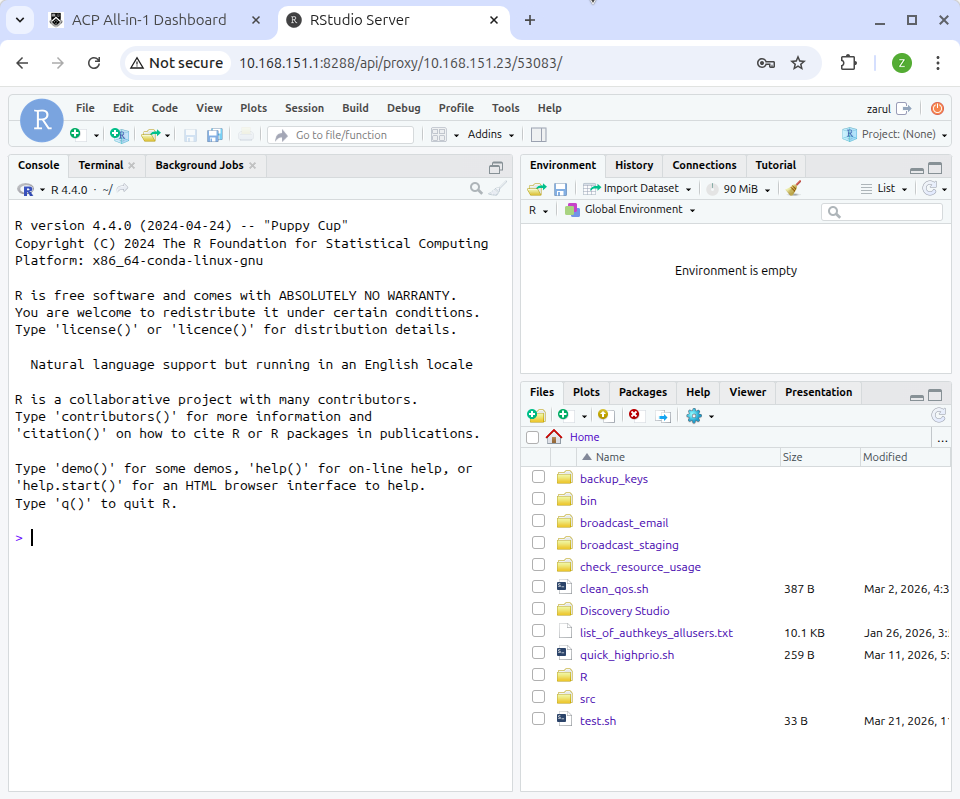
Monitoring Your Jobs
The Jobs tab allows you to track all your activity:
- Real-time Metrics: See live CPU, Memory, and GPU utilization for running sessions.
- Job Management: Cancel hung sessions or view the output logs (
.vnc/acp_%j.log) directly for troubleshooting.
Always remember to Cancel your interactive jobs once you are finished to free up valuable cluster resources for other researchers.