Connecting to MONTAGE via ssh
Just checking
- You got your ACP account? Register via iLab. Of course, you will need your Monash iLab credentials to do that, should be quick enough to register.
- You are in Monash University Malaysia Network?
- If you are outside of campus, connect via GlobalProtect on vpn.monash.edu.my
- You know your account ID and password?
- Read on SSH
If you are on a Windows machine...
- From Windows machines, there are various SSH-compatible programs:
- [ PowerShell or Command Prompt (Windows built-in) ]()
- PuTTY (Open Source)
- MobaXterm
- mRemoteNG
- Fill in your HPC credentials, especially the username and password.
If you are on a Mac or Linux machine...
- If you are on a Mac or Linux machine, just open a terminal.
- Connect to MONTAGE:
ssh [user]@[ip-addr]
ssh user0001@10.168.151.1 # switch user0001 to your username - Key in your ID and password.
- When you type in your password, and you didnt see your letters getting typed, do not panic. That is how passwords are not exposed in Linux computers.
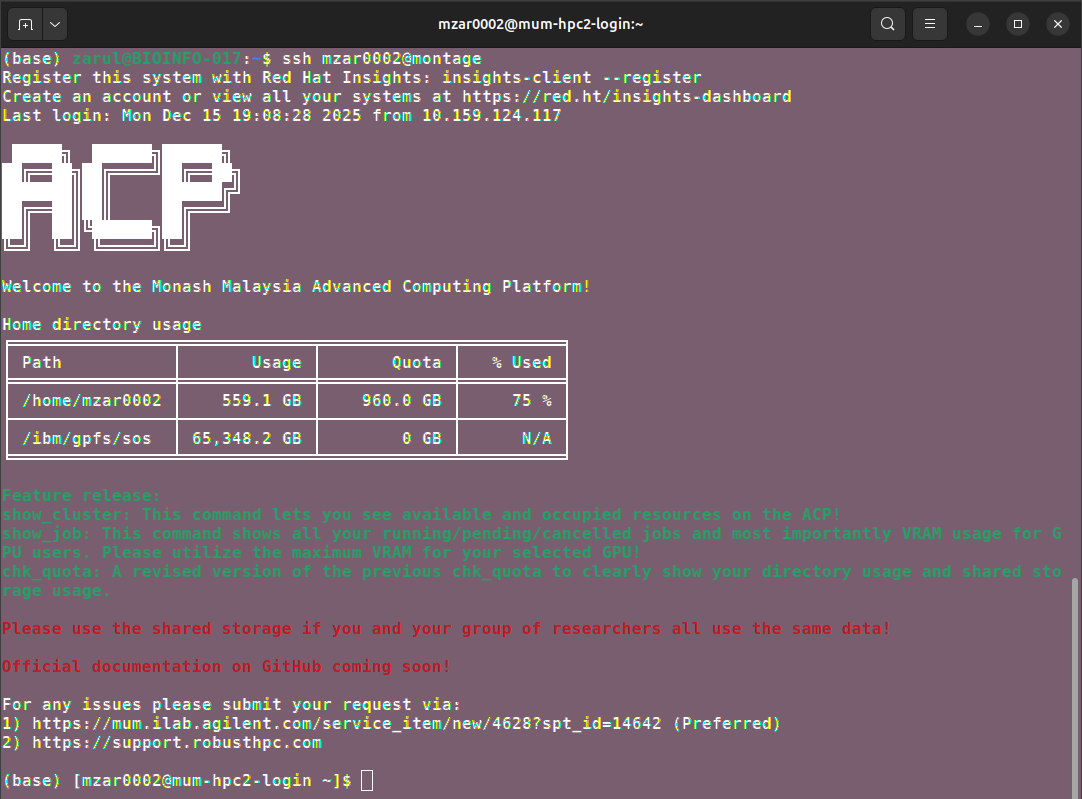
- If you successfully got in, you will see this in your terminal.
tip
Maybe if you are comfortable with working in Linux, this is a tip for you. I hate remembering IP addresses, so you can actually register the address and give it a name:
-
From your home, there is probably a hidden folder named
.ssh/ -
Create a file
.ssh/config. Yes, the file doesnt have an extension. -
Open with your favourite text editor, edit it:
Host    [give-a-name]
    HostName    [the-ip-address]
    User    user0001

# Sample
Host    montage
HostName 10.168.151.1 -
Save and close. Now, you can ssh with the given name:
ssh user0001@montage